KELK Account Guide
The KELK account portal is where the owner of a KELK account manages the subscription, pays for it, buys tokens, and (for enterprise accounts) manages the people who use KELK.
This guide goes through the portal page by page, in the order of the menu on the left. Every picture is a Real screenshot of the portal, taken from a sample account called “Acme Studio”. Your own account shows your names, plan and amounts.
1 · Signing in
- Open the KELK sign-in page and enter your Username and Password.
- If you turned on two-factor authentication (see My Account), KELK sends a six-digit code to your e-mail address. Type it in Email verification code and click Verify code. The code is valid for a few minutes; if it expires, sign in again to get a new one.
- As the owner, you go straight to the portal's Dashboard.
Forgot your password? Click Forgot password under the sign-in form, enter the e-mail address of your account and click Send link. KELK e-mails you a link (valid for 30 minutes) that opens a page where you choose the new password. Then sign in with the new one.
To leave, click Logout at the bottom of the menu.
2 · The screen
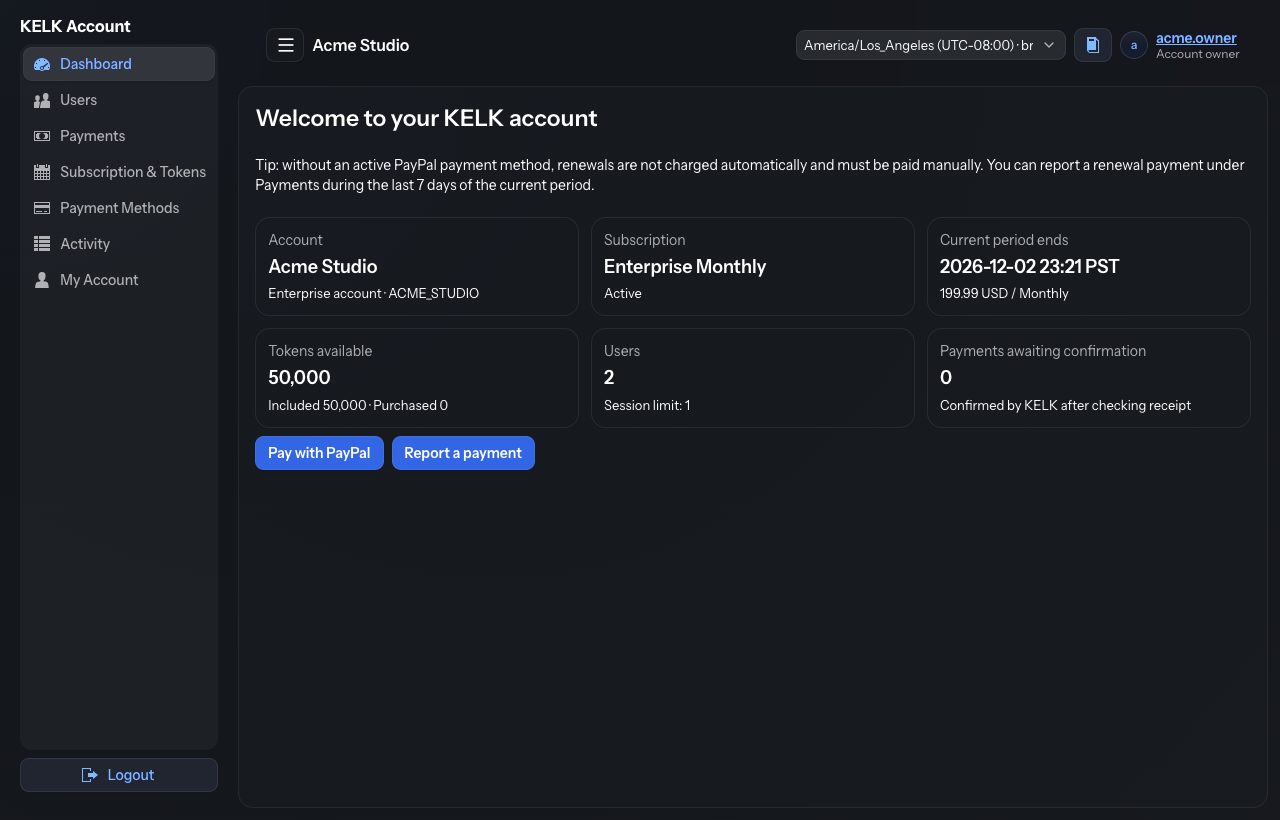
| Part | What it does |
|---|---|
| ☰ (menu button) | Shows or hides the menu. On a phone the menu is hidden until you tap it. |
| Account name | The name of your KELK account, for example “Acme Studio”. |
| Time zone | Dates and times in the portal are shown in this time zone. It starts with your browser's time zone (marked “· browser”). The choice lasts until you sign out. |
| 📖 Book button | Opens this guide in a new browser tab. |
| Your username | Click it to open My Account. “Account owner” under it is your role. |
| Menu | The portal pages. The page you are on is highlighted. Users appears only for enterprise accounts. |

3 · Dashboard
Menu › Dashboard
The Dashboard is a summary of your account. Messages that need your attention appear at the top.
| Card | What it shows |
|---|---|
| Account | Account name, account type (for example Enterprise) and account code. |
| Subscription | Your plan and its status (see statuses). |
| Current period ends | When the period you paid for ends, and the price per period. |
| Tokens available | All tokens you can use now, split into included tokens (come with the plan each period) and purchased tokens (bought separately, do not expire). |
| Users | How many users the account has, and the session limit: how many of them may be signed in to the studio at the same time. |
| Payments awaiting confirmation | Payments you reported that KELK has not confirmed yet. |
Pay with PayPal opens Payments with the PayPal dialog ready (shown only while KELK accepts PayPal); Report a payment takes you to Payments. Until you have connected PayPal for automatic renewal, Connect PayPal is next to them: it opens PayPal's page, exactly as the button under Payment Methods does. A subscription waiting for its first payment also shows Connect PayPal in its message at the top: connecting charges that first payment right away.
Messages you may see
- PayPal sent your renewal invoice… with a Pay the invoice on PayPal link: paying the invoice renews your subscription. See How renewal works.
- Your renewal payment is overdue: the period ended without payment. The account stays usable until the date shown; pay before then.
- Your subscription has ended or was cancelled: buy or renew it under Payments.
- Your next renewal is paid: you paid the next period in advance (or your agent did); it starts on the date shown.
- Your renewals are handled by your agent: pay your agent before the date shown; your agent renews your subscription. See How renewal works.
- Tip: without an active PayPal payment method…: renewals are not charged automatically. Connect PayPal under Payment Methods, or pay each renewal yourself.
4 · Users Enterprise accounts
Menu › Users
Here you manage the people of your organisation who use the KELK studio. Each user signs in with their own username and password.
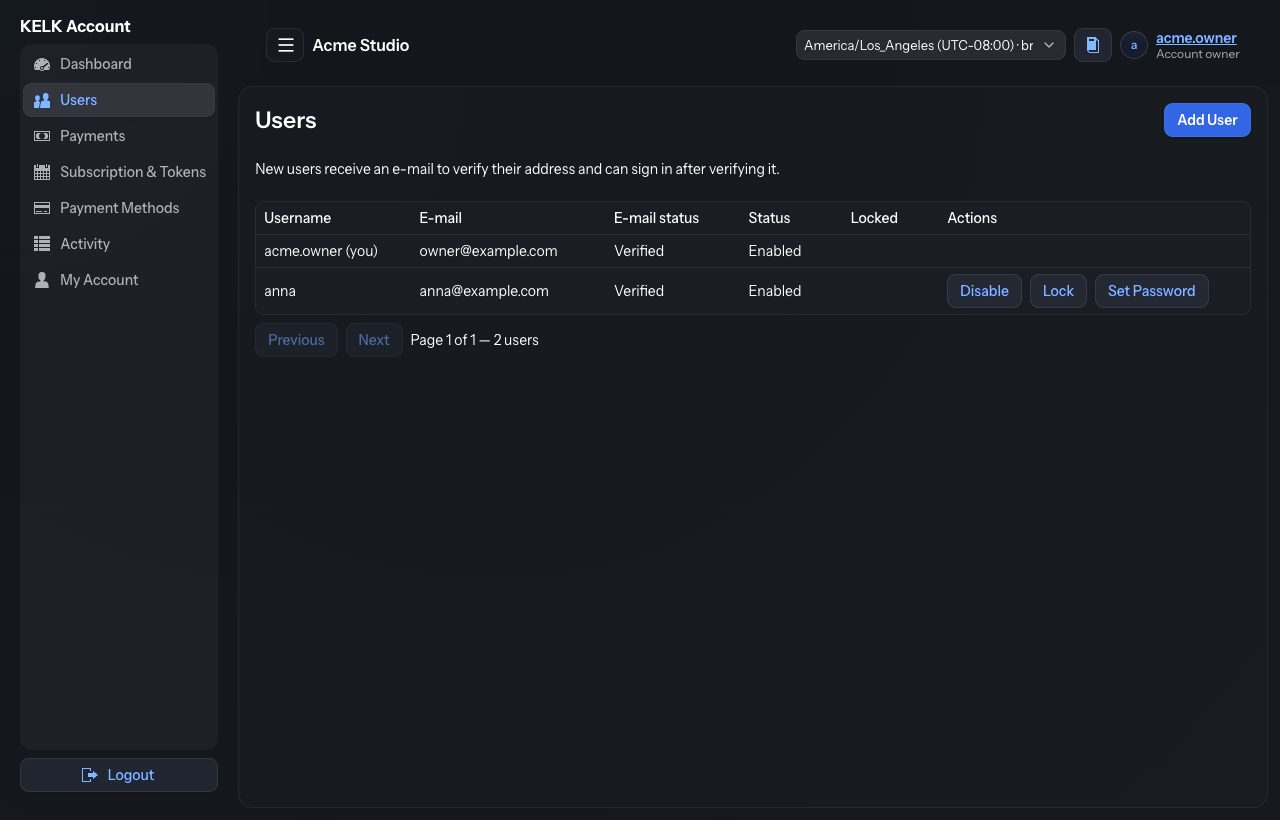
| Column / button | Meaning |
|---|---|
| E-mail status | Verified once the user clicked the link in the verification e-mail. Users can sign in only after verifying. |
| Status · Disable / Enable | A disabled user cannot sign in until you enable them again. Use it for someone who left or should no longer use KELK. |
| Locked · Lock / Unlock | A locked user cannot sign in. KELK may also lock a user after too many wrong passwords; Unlock lets them try again. |
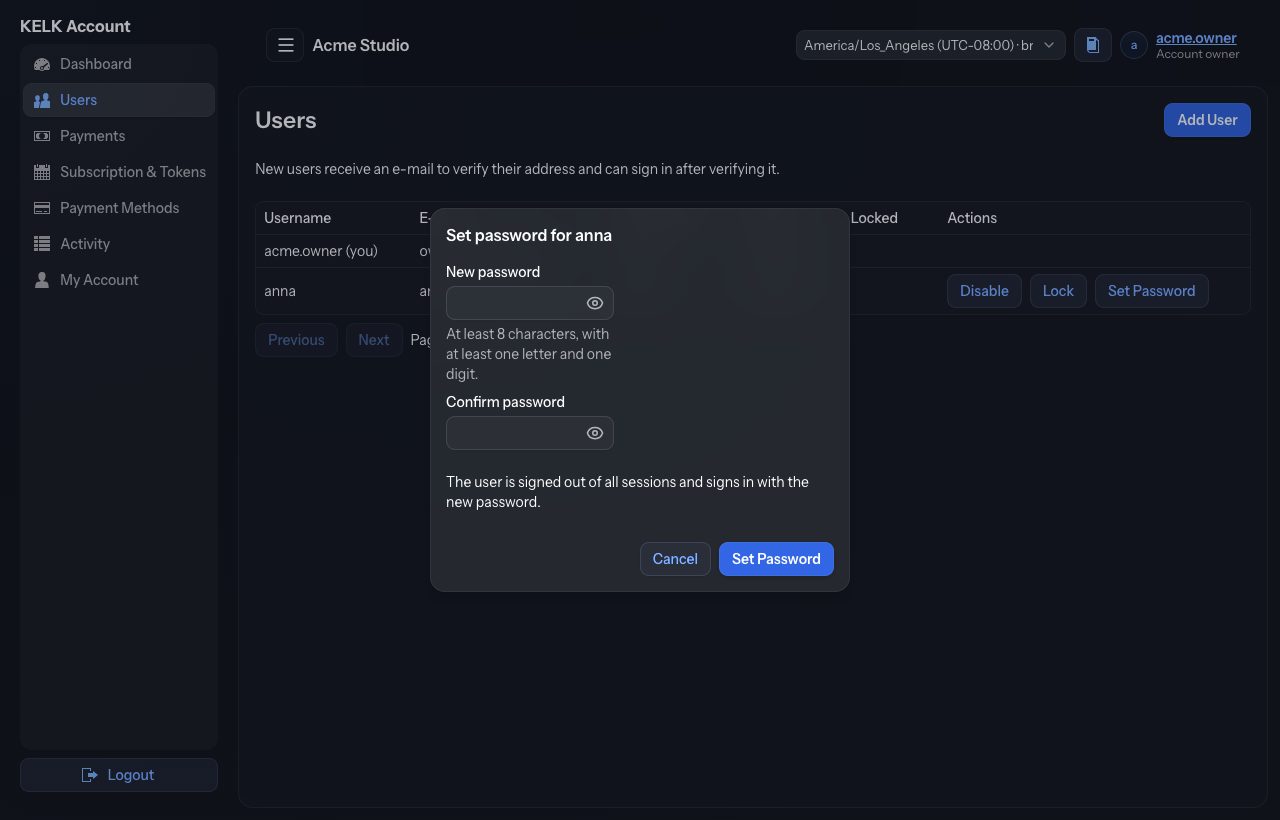
| Set Password | Gives the user a new password, for example when they forgot theirs. They are signed out everywhere and sign in with the new password. |
| Resend Verification | Shown while the e-mail is not verified: sends the verification e-mail again. |
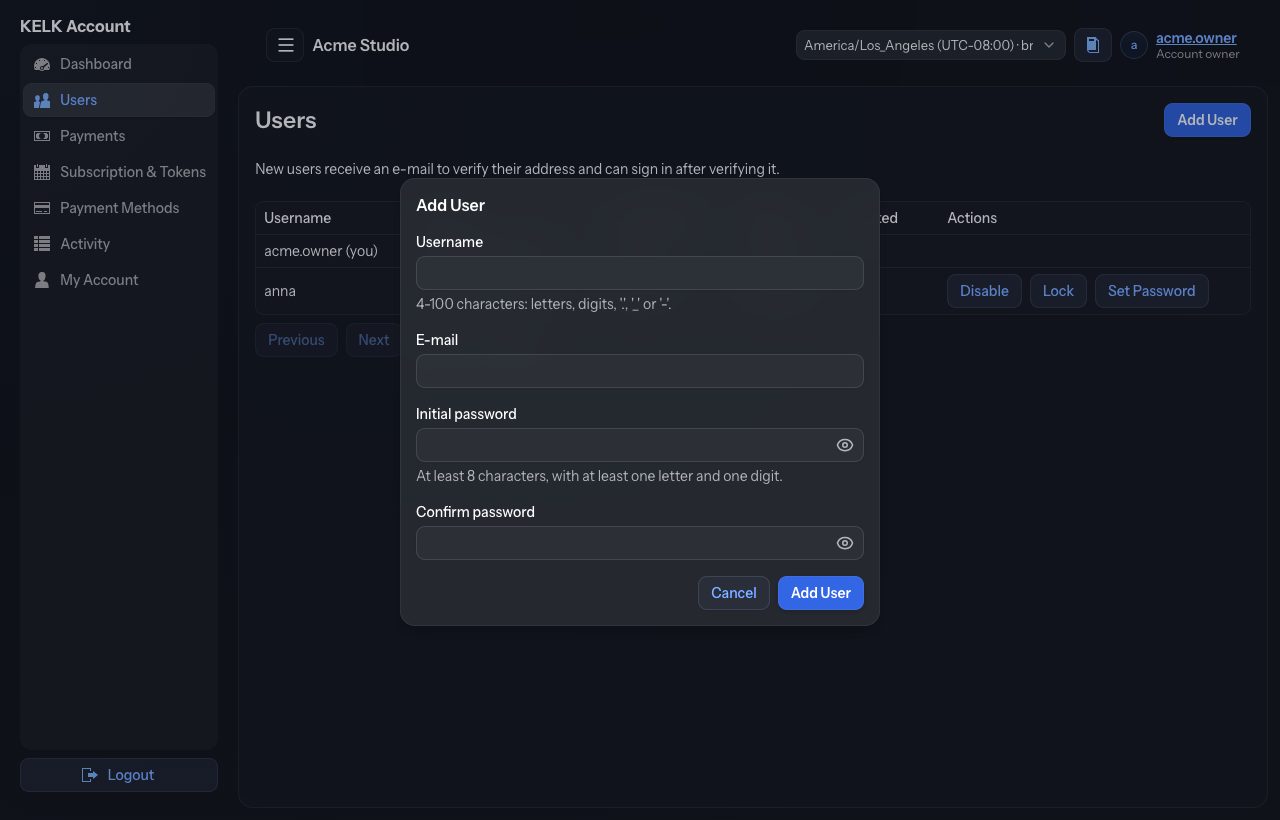
Add a user
Goal: a colleague can sign in to the KELK studio.
- Click Add User.
- Enter a Username (4–100 characters: letters, digits, “.”, “_” or “-”) and the person's E-mail.
- Choose an Initial password (at least 8 characters, with at least one letter and one digit) and type it again in Confirm password.
- Click Add User. KELK e-mails the user a verification link.
- Give the user their username and initial password. They can sign in after clicking the link.
How many users may be signed in to the studio at once is limited by the session limit on the Dashboard. Contact KELK if you need a higher limit.
5 · Payments
Menu › Payments
All payments of your account, newest first, and the two ways to pay: Pay with PayPal (applied immediately) or Report a Payment (for money you sent another way, confirmed by KELK).
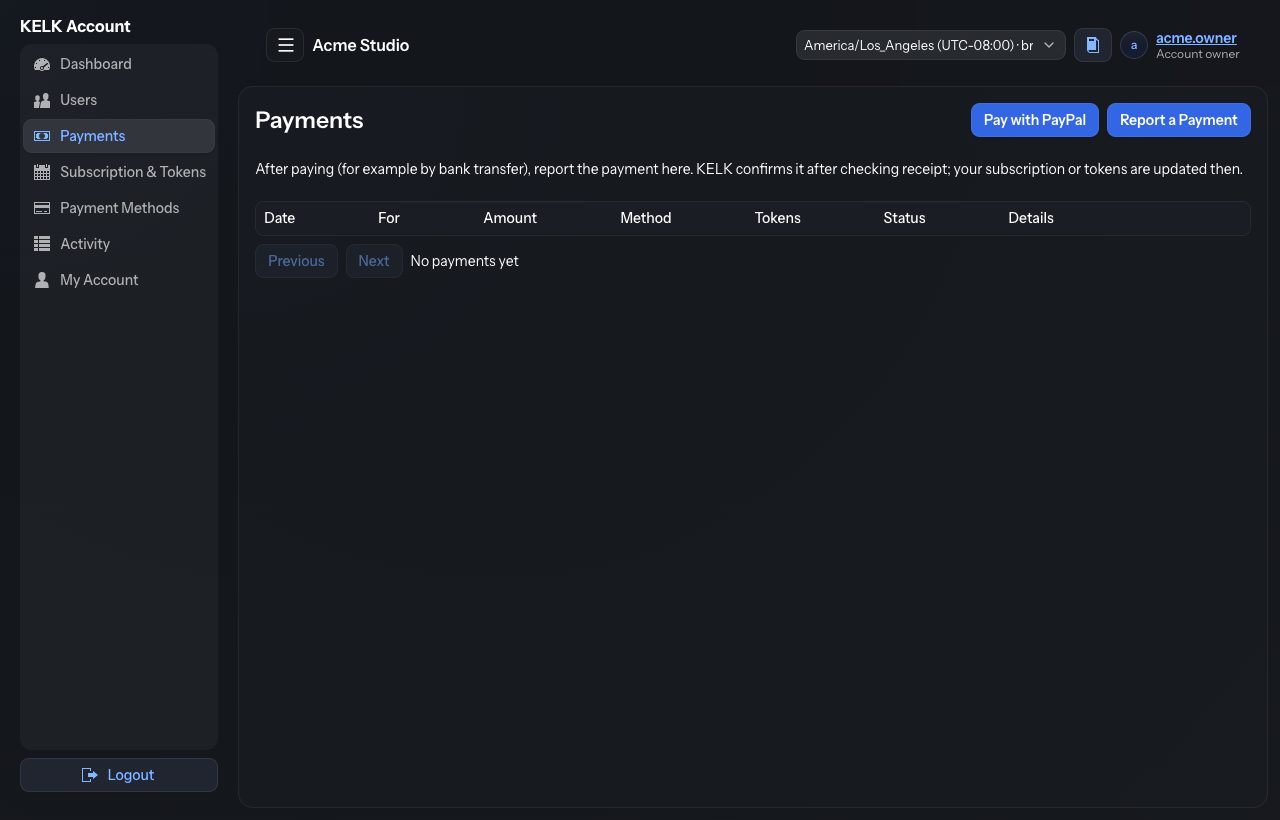
What you can pay for
| Payment for | When it is offered |
|---|---|
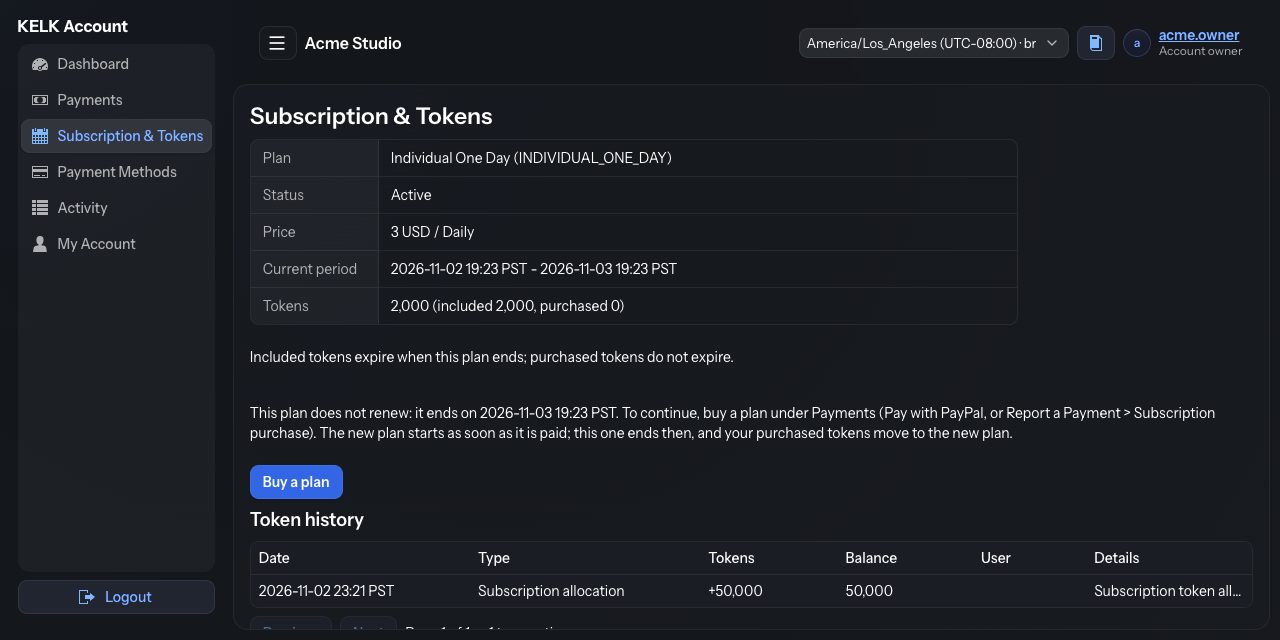
| Subscription purchase | When the account has no subscription, or the old one was cancelled. You choose the plan. Compare plans and tokens in the dialog opens the price list. Also while you use the one-day plan, and after it ended: the plan you buy starts as soon as it is paid, the one day ends then, and your purchased tokens move to the new plan. |
| Subscription renewal | When the renewal is due or overdue, and during the last 7 days of the current period (paid in advance; it starts when the current period ends). |
| Token purchase | Always. Choose a token package. Purchased tokens are added to your balance and do not expire. |
Pay with PayPal
Goal: pay now and have it applied right away.
- Click Pay with PayPal.
- Choose what you pay for in Pay for, then the plan or token package. The amount is shown.
- Click Continue to PayPal. PayPal's page opens.
- Pay with your PayPal account or a card.
- PayPal sends you back to KELK, which shows the result. Your subscription or tokens are updated as soon as PayPal confirms the payment.
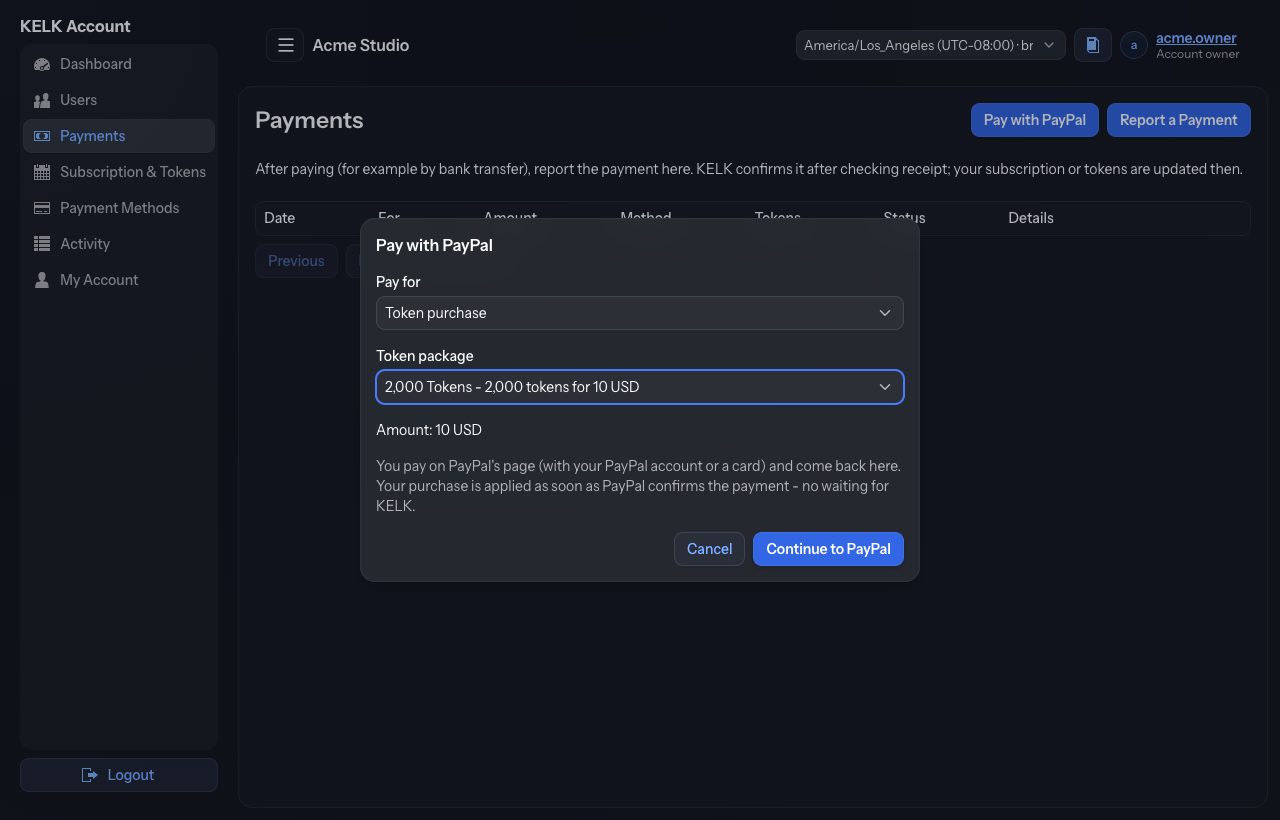
If you cancel on PayPal's page, you come back to a “Payment cancelled” page and nothing is charged.
Report a payment you made another way
Goal: tell KELK about a bank transfer, cheque or other payment.
- Make the payment first, for example by bank transfer.
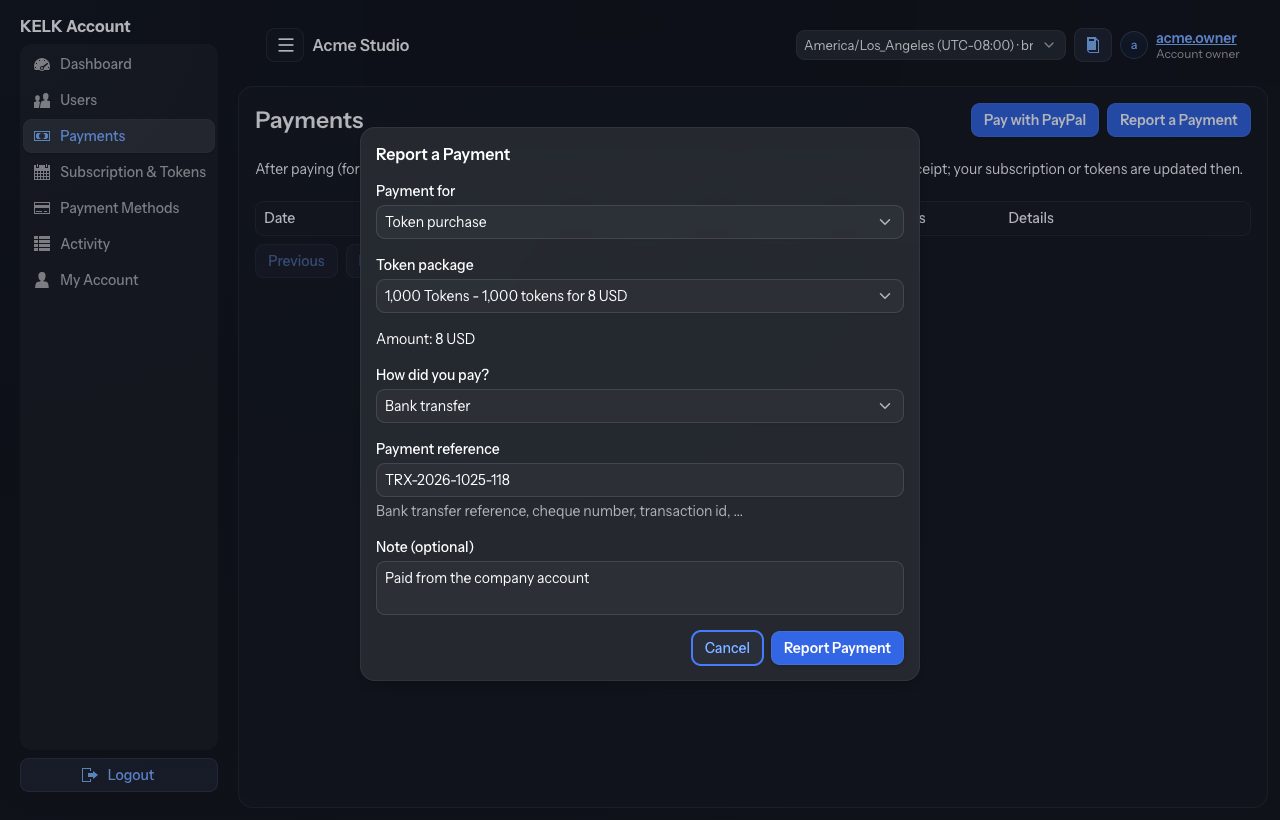
- Click Report a Payment.
- Choose Payment for, then the plan or token package. Check the amount shown.
- Under How did you pay? choose the payment method.
- Enter the Payment reference (bank transfer reference, cheque number, transaction id…) so KELK can find your payment. Add a Note if it helps.
- Click Report Payment. The payment appears as Awaiting confirmation. Once KELK has checked that the money arrived, it is confirmed and your subscription or tokens are updated.
Payment statuses
| Status | Meaning |
|---|---|
| Awaiting confirmation | Reported by you; KELK has not confirmed it yet. You can still Cancel it if you reported it by mistake. |
| Paid in advance | A renewal paid before the current period ended. It is applied when the current period ends. |
| Completed | Received and applied. |
| Failed / Cancelled | Not received, or withdrawn. Nothing was applied. |
| Refunded / Partially refunded | The money was paid back, fully or in part. |
You can have only one unconfirmed report of each kind at a time. Wait for it to be confirmed, or cancel it, before reporting another.
6 · Subscription & Tokens
Menu › Subscription & Tokens
The details of your subscription and the history of your tokens.
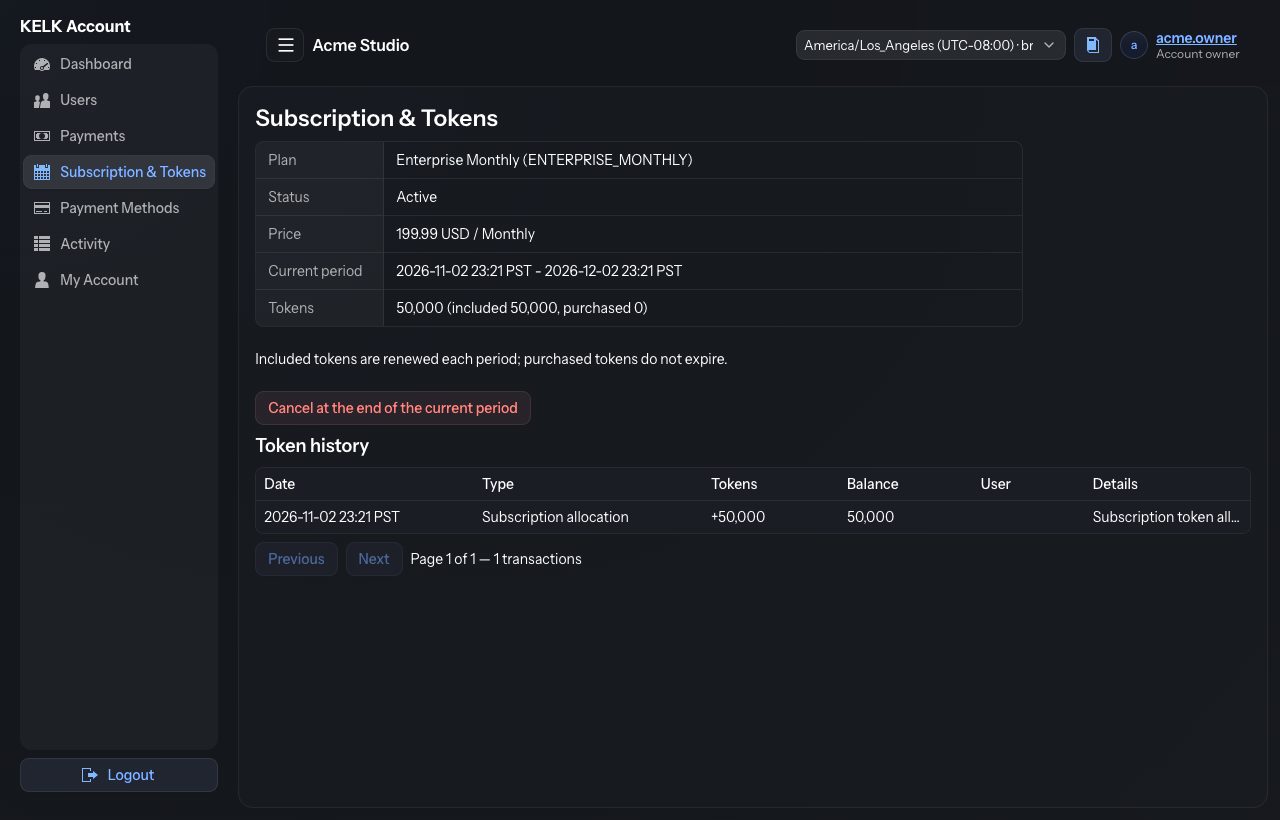
| Line | Meaning |
|---|---|
| Plan | Your plan's name and code. |
| Status | See Subscription statuses. |
| Price | What each period costs, and how long a period is (Monthly, Quarterly, Yearly…). If KELK changes the price of your plan, the new price applies from your next renewal; the renewal reminder e-mail shows the amount. |
| Current period | The start and end of the period you paid for. |
| Tokens | Your balance: included tokens are renewed each period (unused ones do not carry over); purchased tokens do not expire. |
| Installments | Only for a lifetime plan paid in installments: how many are paid, for example “4 of 10 installments paid (100 USD each)”. Each installment is paid like a monthly renewal. The last one makes your subscription lifetime: it is never renewed or charged again. The Dashboard shows the same line. |
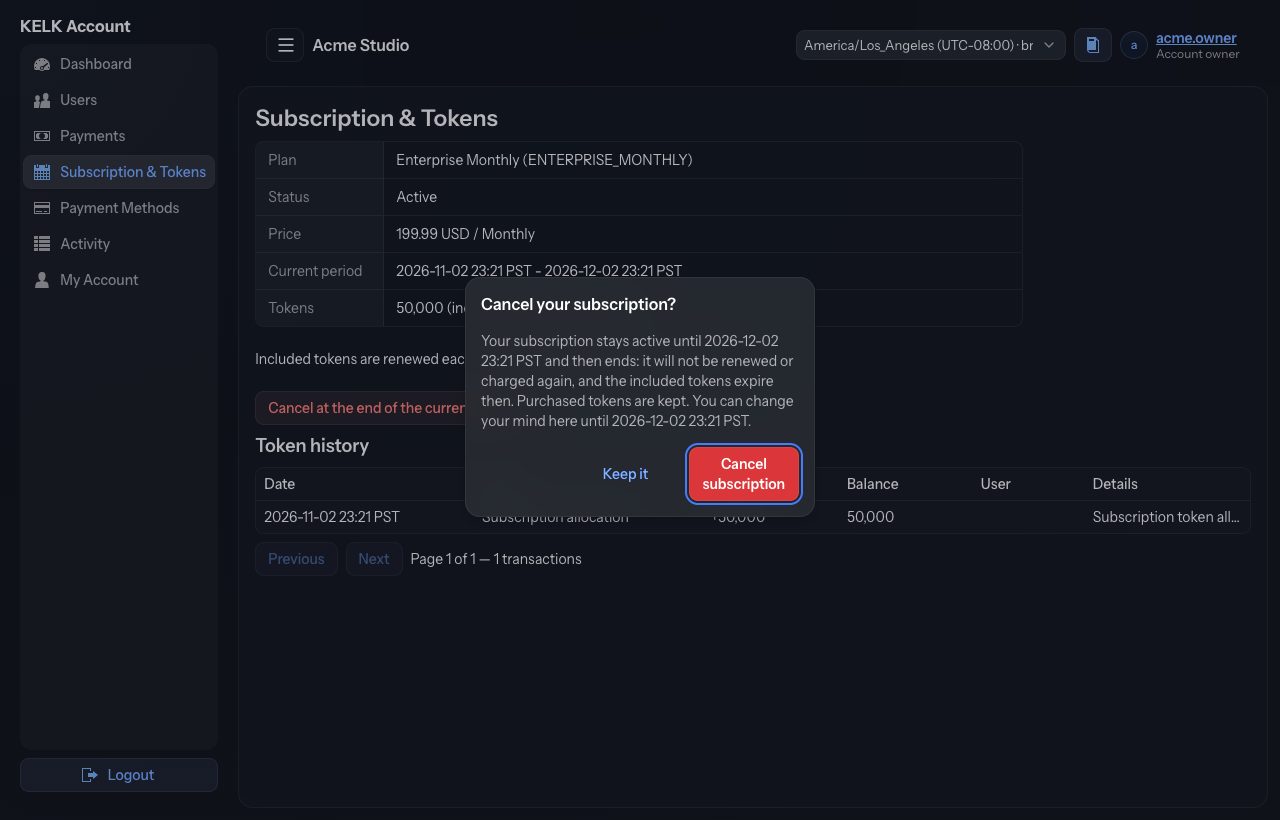
Cancel your subscription
Goal: stop renewing at the end of the period you already paid for.
- Click Cancel at the end of the current period.
- Read the confirmation and click Cancel subscription (or Keep it to change nothing).
- The page now says when the subscription ends. Until then everything keeps working as before.
- When the period ends, the subscription ends: it is not renewed or charged again, any open PayPal renewal invoice is cancelled, and the included tokens expire. Purchased tokens stay on the account.
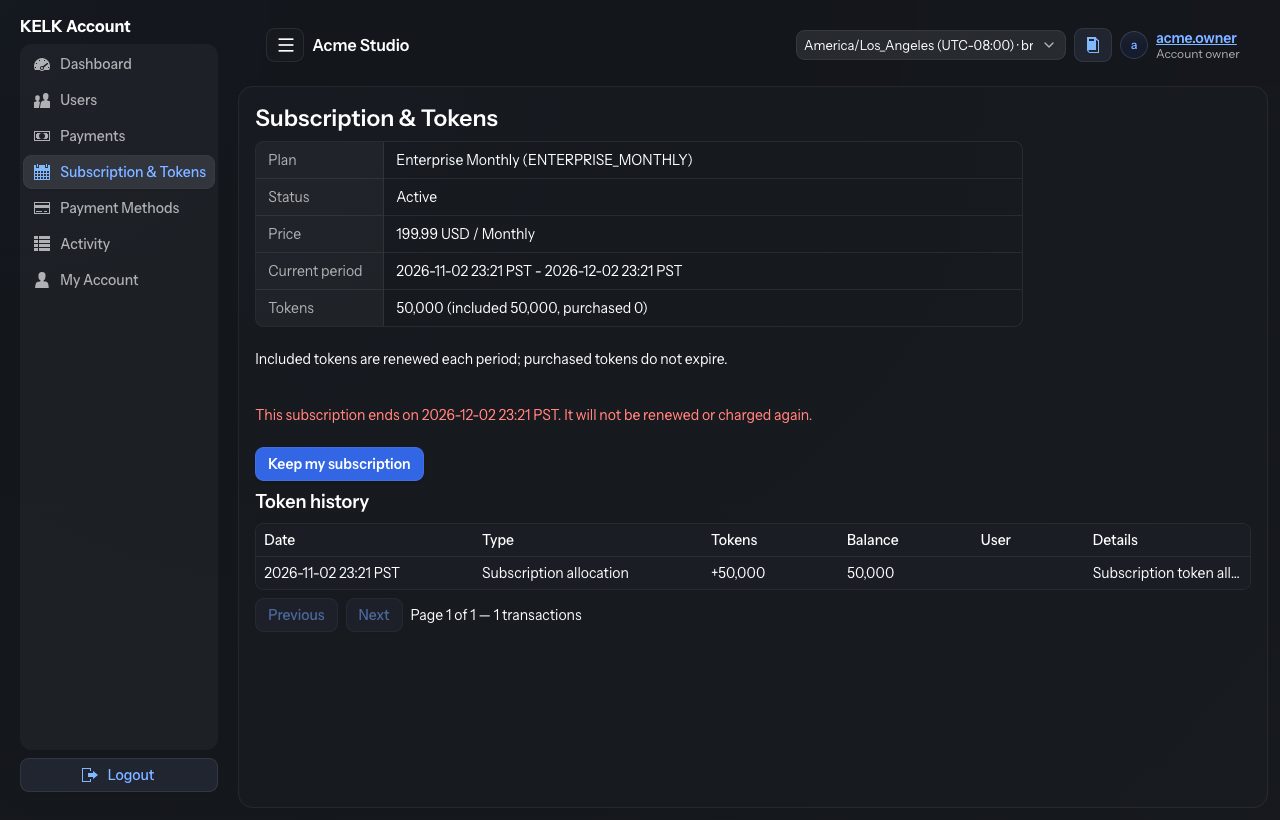
Changed your mind? Click Keep my subscription any time before the end date. The subscription then renews as usual.
If you have already paid the next period in advance, you cannot cancel it here. Please contact KELK.
Token history
Every change to your token balance, newest first: the tokens added or used (+ or −), the balance after it, the user who used them, and details.
| Type | Meaning |
|---|---|
| Subscription allocation | The included tokens of a new period. |
| Token purchase | Tokens you bought. |
| Usage | Tokens used in the KELK studio, with the user who used them. |
| Token expiration | Unused included tokens removed at the end of a period. |
| Refund / Token adjustment / Admin adjustment | Corrections made by KELK, for example after a refund. |
7 · Payment Methods
Menu › Payment Methods
How your renewals are paid. KELK uses PayPal for automatic renewal and for renewal invoices.
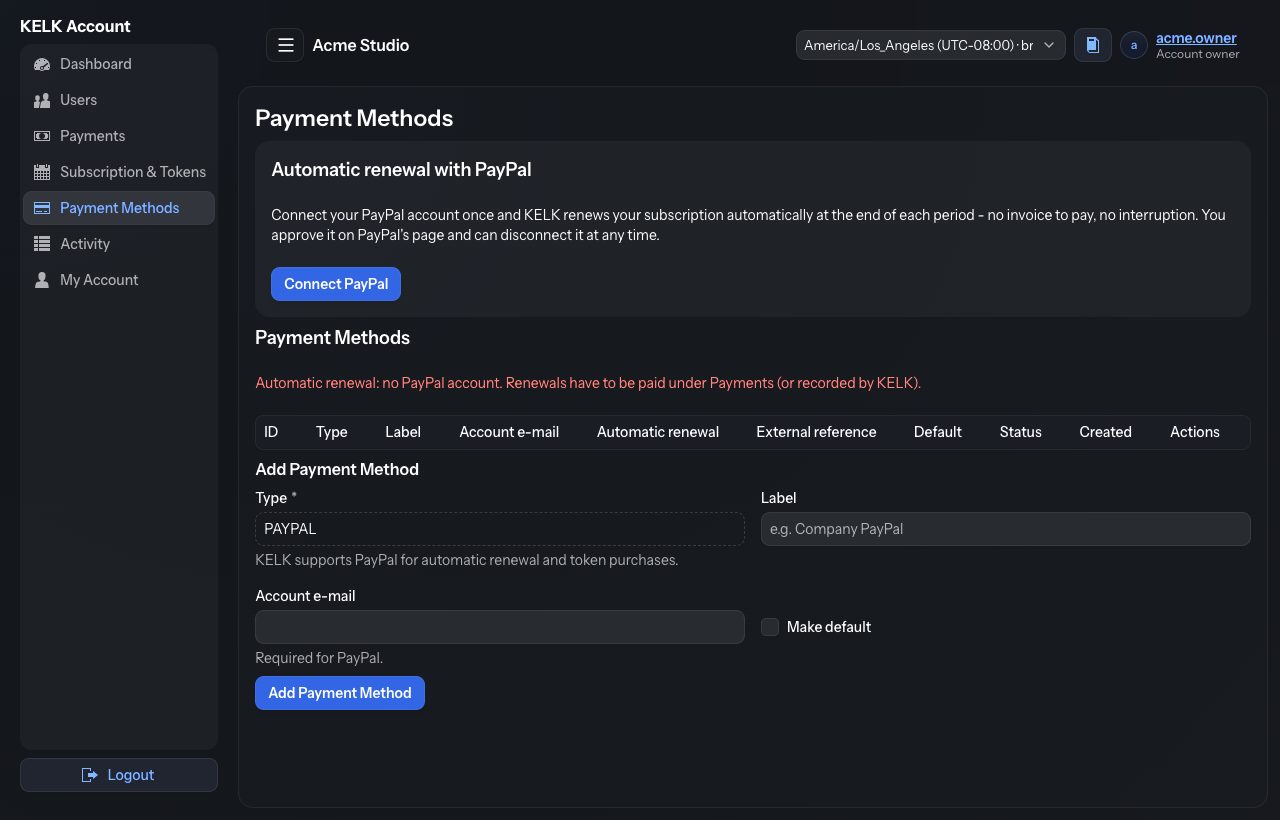
Turn on automatic renewal (connect PayPal)
Goal: KELK renews your subscription at the end of each period without you doing anything.
- Under Automatic renewal with PayPal, click Connect PayPal. PayPal's page opens.
- Sign in to PayPal and approve that KELK may charge your PayPal account for renewals.
- PayPal sends you back to KELK. The section now says Connected with your PayPal e-mail.
- From now on, KELK charges the price of your plan at the end of each period. If a charge fails, KELK tries again over the following days; meanwhile your account stays usable.
To stop automatic renewal, click Disconnect and confirm. You then pay each renewal yourself. Disconnecting does not cancel the subscription; to end it, see Cancel your subscription.
You can also stop it in your PayPal account (Automatic payments › Stop paying with PayPal). KELK then disconnects PayPal on its side too and e-mails you; your subscription stays as it is. Connect PayPal again whenever you like.
In the payment method list, the Automatic renewal column says Connected on the PayPal account that renewals are charged to. After a disconnect the PayPal method stays (renewal invoices still go to its e-mail), with that column empty.
If you cancel on PayPal's page you come back to “PayPal not connected” and nothing changes.
PayPal payment method (for renewal invoices)
Without automatic renewal, add your PayPal e-mail as a payment method: KELK then sends a PayPal invoice to that address about a week before each renewal. Paying the invoice renews your subscription.
- Under Add Payment Method, the type is PAYPAL.
- Enter a Label if you like (for example “Company PayPal”) and the Account e-mail of your PayPal account.
- Tick Make default if you have more than one, then click Add Payment Method.
The list shows your payment methods with Make Default and Deactivate / Activate buttons. The line above the list tells you how renewals are handled now.
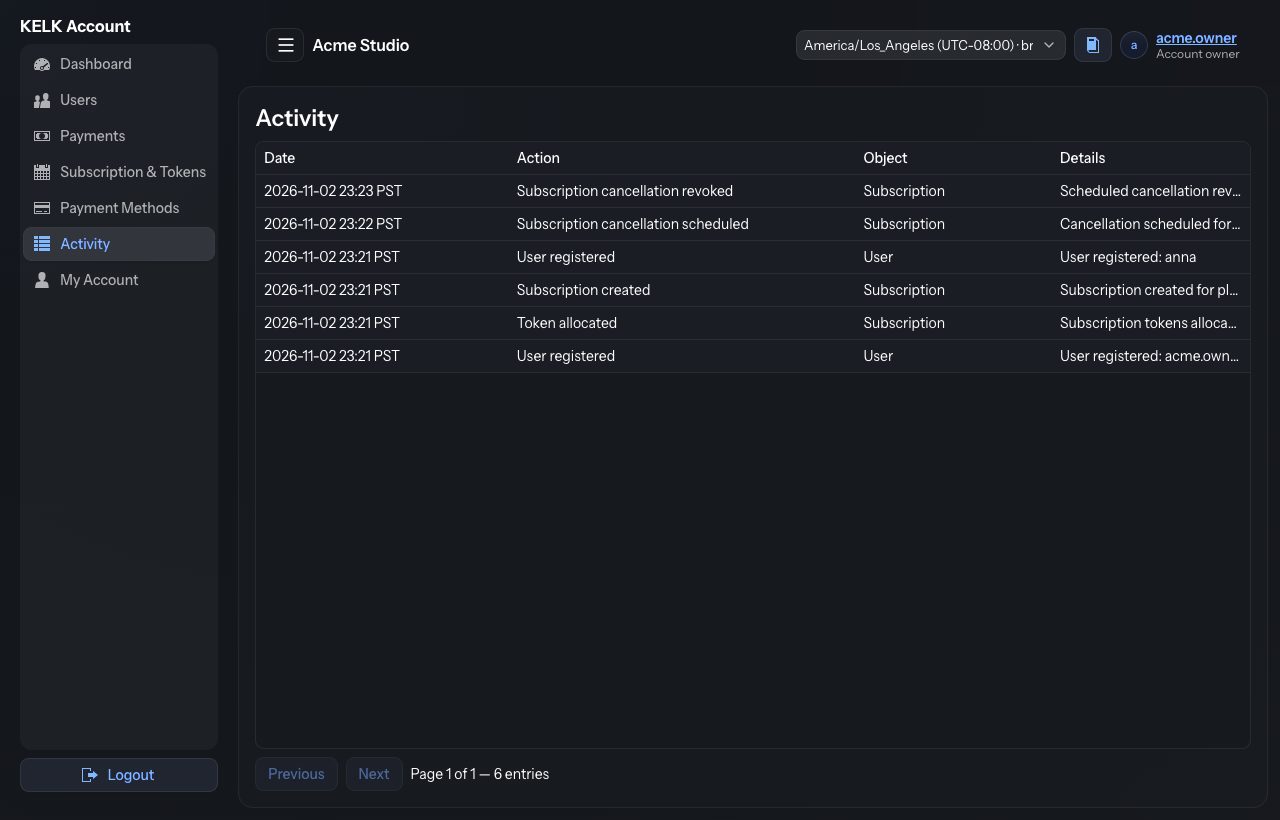
8 · Activity
Menu › Activity
A record of what happened in your account, newest first: payments, subscription changes, token allocations, users added, and so on. Use it to see who did what and when.
9 · My Account
Menu › My Account, or click your username in the header
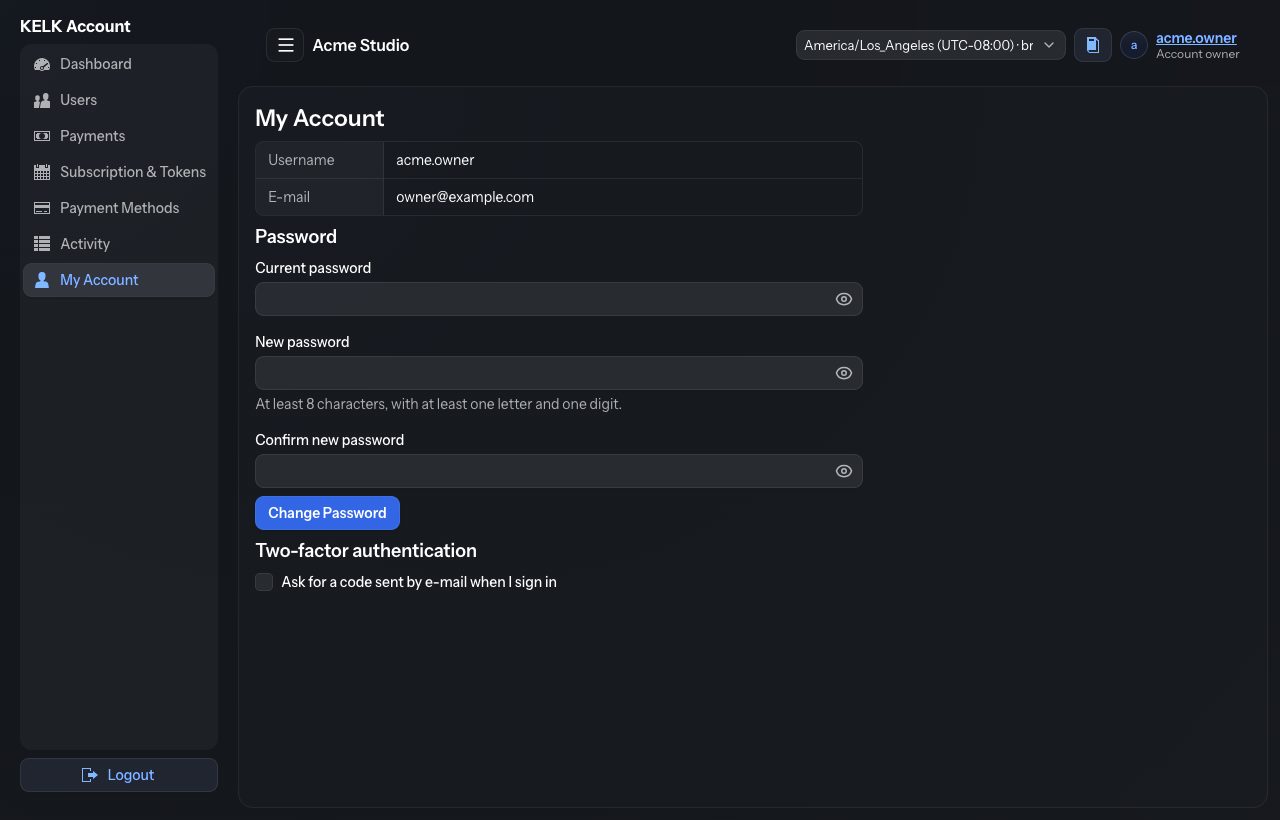
Change your password
- Enter your Current password.
- Enter the New password (at least 8 characters, with at least one letter and one digit) and type it again in Confirm new password.
- Click Change Password. You are signed out of the KELK studio and sign in there with the new password.
Two-factor authentication
Tick Ask for a code sent by e-mail when I sign in to protect your account: after your password, KELK also asks for a six-digit code sent to your e-mail. Untick it to turn it off. We recommend keeping it on, since the owner account controls payments and users.
10 · How renewal works
At the end of each period your subscription has to be renewed. There are three ways; you can use whichever suits you.
| Way | What you do | What happens |
|---|---|---|
| Automatic | Connect PayPal once under Payment Methods. | KELK charges your PayPal account at the end of each period. Nothing else to do. |
| PayPal invoice | Add your PayPal e-mail as a payment method. | About a week before the period ends, PayPal e-mails you an invoice. The Dashboard shows it too. Pay it and your subscription is renewed. |
| Pay yourself | In the last 7 days of the period, or after it ended, use Payments: Pay with PayPal or Report a Payment. | PayPal payments are applied right away; reported payments once KELK confirms them. |
The one-day plan is not renewed: it simply ends after its day (see Subscription & Tokens).
If a period ends without payment, the subscription becomes Past due. The account keeps working for a few days (the Dashboard shows until when). Pay within that time to continue without interruption. After that, the subscription expires.
11 · Subscription statuses
| Status | Meaning | What to do |
|---|---|---|
| Active | Paid and working. | Nothing. |
| Paused | A new subscription waiting for its first payment. | Pay or report the payment under Payments, or connect PayPal under Payment Methods (the first payment is charged right away). |
| Past due | The period ended without payment; the account still works for a few days. | Pay the renewal now. |
| Expired | Not renewed in time. | Renew it under Payments, or contact KELK. |
| Cancelled | Ended by cancellation. | To start again, buy a subscription under Payments. |
12 · Questions
I paid with PayPal but the payment is not shown.
Wait a minute and open Payments again: PayPal sometimes confirms with a short delay. If it is still missing after an hour, contact KELK with the PayPal transaction id.
My reported payment is still “Awaiting confirmation”.
KELK confirms it after checking that the money arrived, which for a bank transfer can take a few working days. Make sure the payment reference is correct.
Do I lose my tokens when I cancel?
Included tokens expire when the subscription ends. Purchased tokens stay on the account and can be used again when you start a new subscription.
A user forgot their password.
On Users, click Set Password on their row and give them the new password. If they are locked out after too many attempts, click Unlock.
The times look wrong.
Check the time zone in the header. It applies to the portal only, until you sign out.
Need more help?
Contact KELK support.